


Like most people running Windows, I rely on the built-in security to keep my device safe. I know my way around Windows Security, but I kept my settings mostly at default until recently, when I read a Microsoft report about a recent threat. In short, malware disguised as legitimate, popular apps tried to weaken Windows' own security settings by silently disabling them.
This made me enable Tamper Protection and take a closer look at other useful Windows 11 security settings that are easy to overlook. I'll walk you through the ones I find most interesting. They're all easy-to-enable options right there in settings; we're not doing any obscure Registry tweaks.
Tamper Protection
Stop malware from disabling your security

What happens when sophisticated malware tries to disable security features? As I mentioned above, some malware isn't instantly able to take control of your machine, but it can slowly disable the security settings that keep it under control. Once it gets free rein over your computer, it can do all sorts of harm, from modifying files to stealing information.
Sounds like a nightmare, but you can prevent it with Tamper Protection. This easy-to-enable feature stops apps and processes on your PC from changing or disabling security settings, even if the malicious app has admin privileges. Beyond preventing regular settings changes, it will also block any suspicious Registry changes. To enable: Go to Settings > Privacy & security > Windows Security > Virus & threat protection > Manage settings > Toggle Tamper Protection on.
Controlled Folder Access
Give important files an extra layer of protection
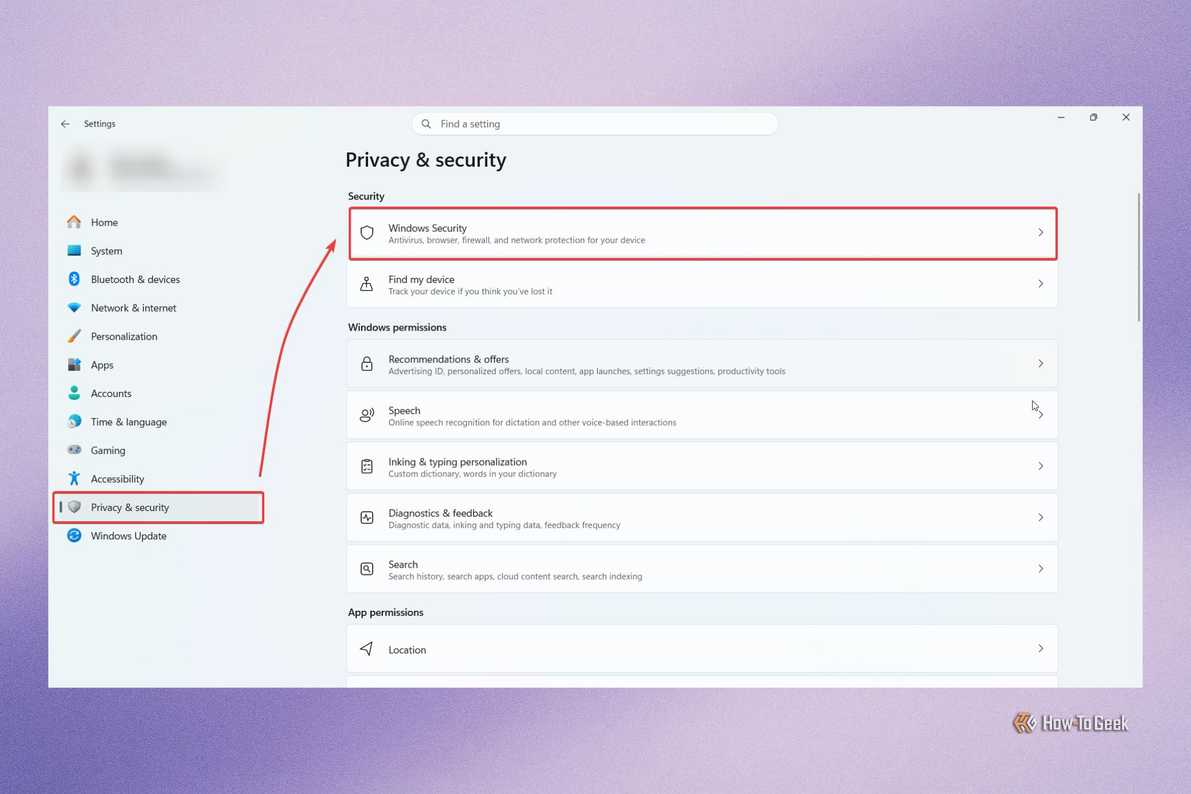
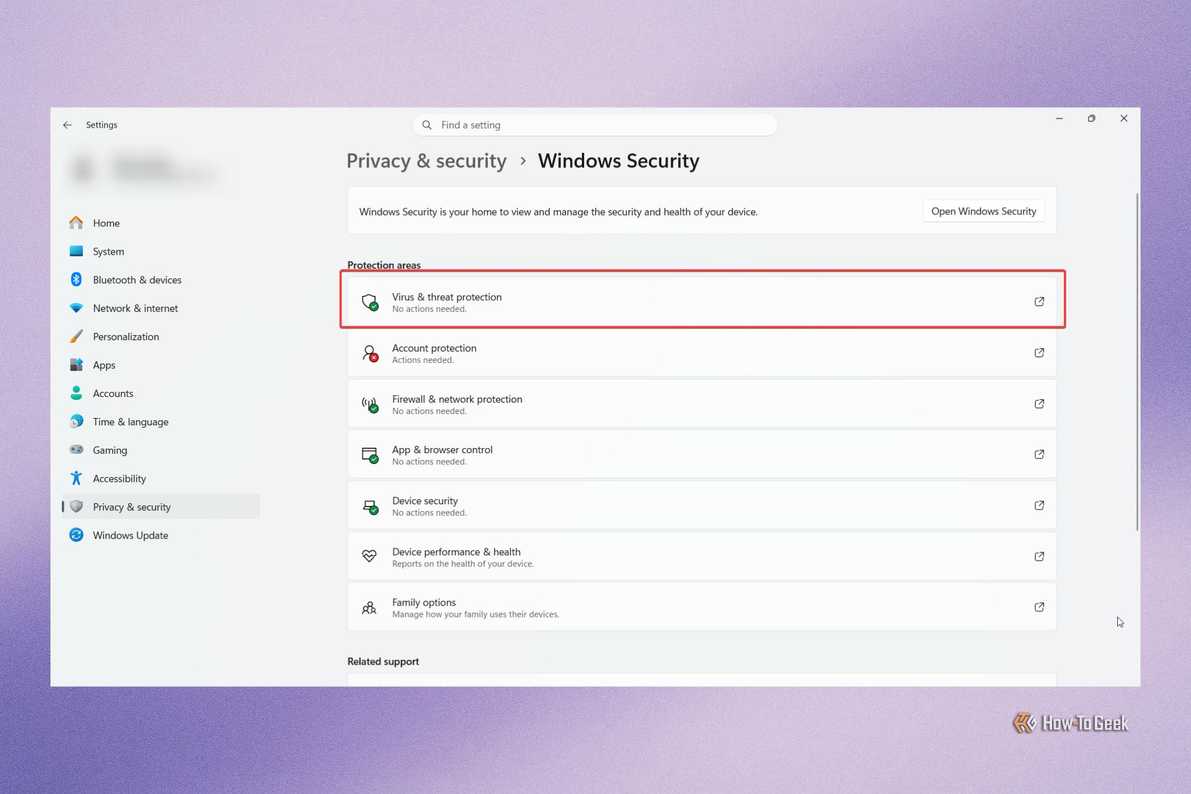
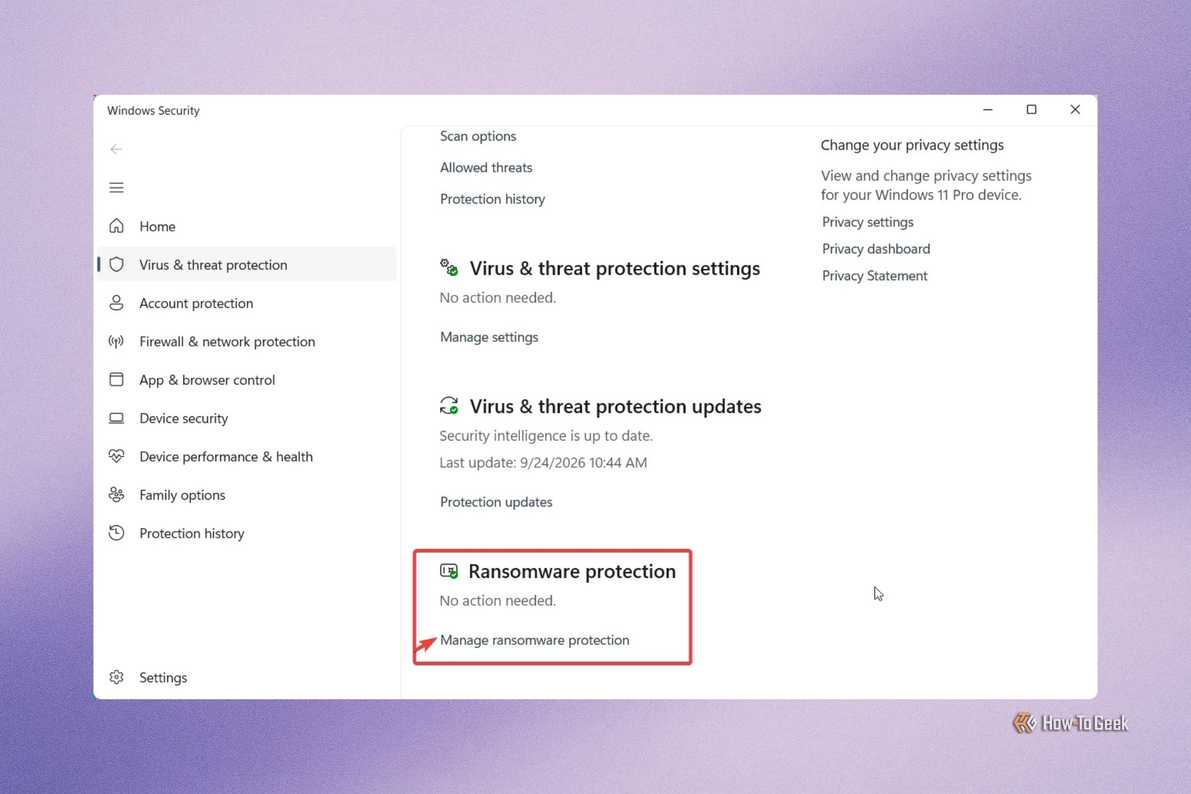
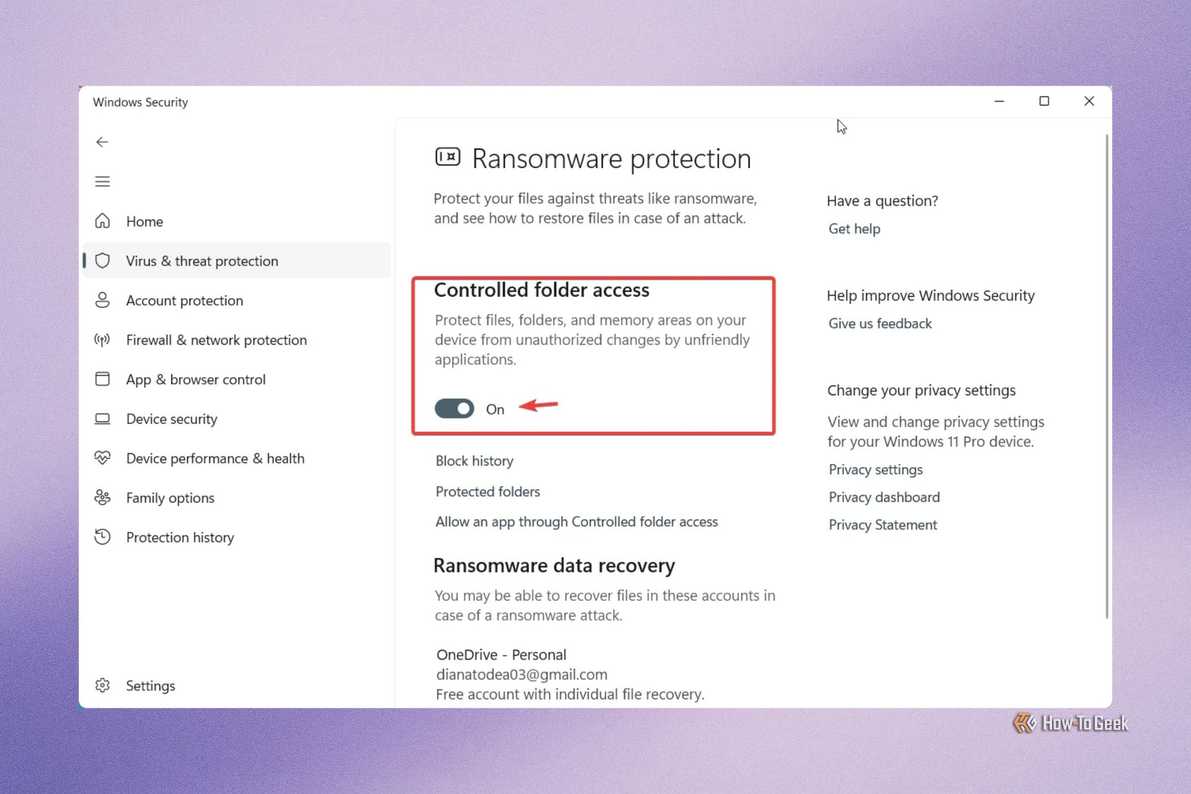
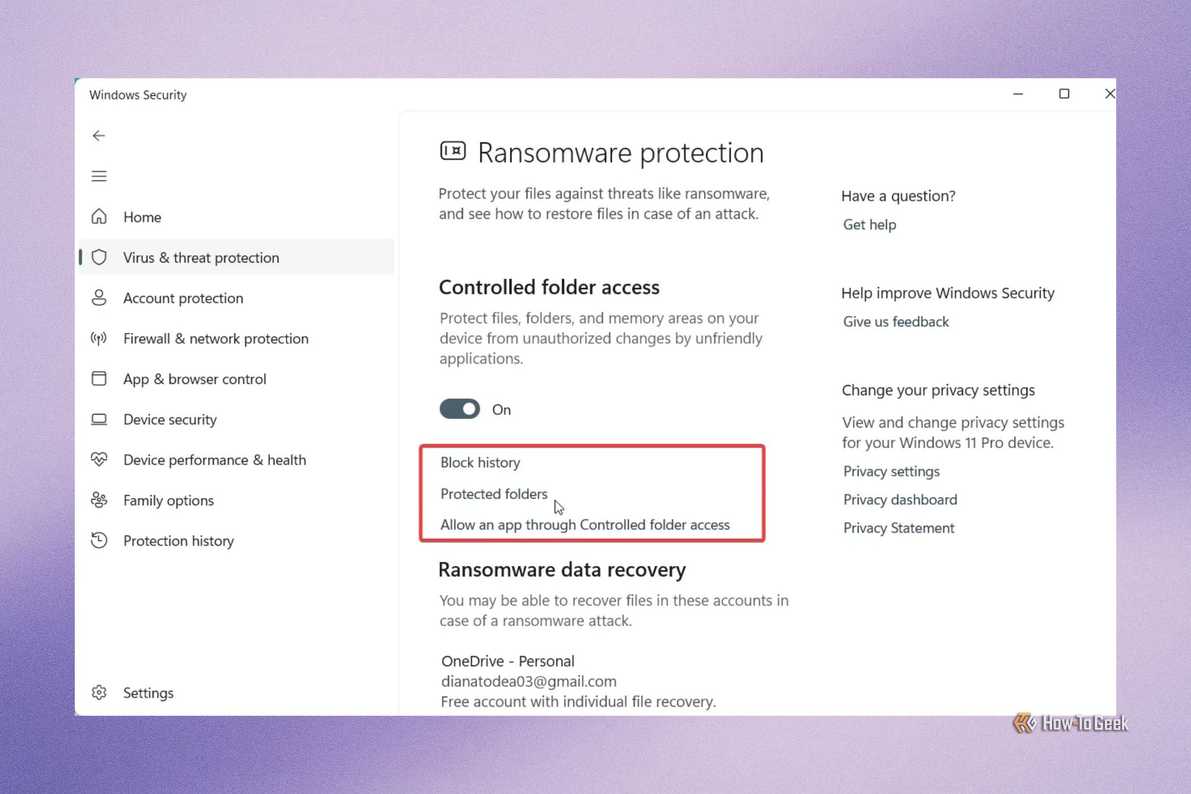


If you keep sensitive information like medical records or financial statements on your PC, Controlled Folder Access is well worth enabling.
A ransomware attack could leave you without important documents, photos, and even work files. A 2025 Pew Research Center survey found that 10% of respondents said they had been locked out of their files or computers until they paid a ransom.
Attackers deploy seemingly harmless apps to lock you out of your files. The worst part is that you won't know until it's too late.
Controlled Folder Access blocks apps on your computer from making changes to your protected folders. Enabling it is easy: Go to Settings > Privacy & security > Windows Security > Virus & threat protection > Manage ransomware protection > Toggle Controlled folder access on.
Once you enable it, you can select the folders you want to protect and also whitelist any apps you want to allow to make changes to them. From this point on, whenever an untrusted app tries to make changes to a file from your protected folder, Windows will block it and send you a notification.
Smart App Control
Stop sketchy apps before they get a chance to run

As someone who likes downloading and trying new apps, I can appreciate anything that stops me from running potentially harmful software. Smart App Control can do that, although it can be a little restrictive. Unlike User Account Control, which asks you for permission to run apps, Smart App Control doesn't ask.
It uses a combination of cloud-based application intelligence and digital signature verification to decide if an app is safe to run or not. If the app in question is known to be malicious or doesn't meet Microsoft's trust requirements, it will block it.
You can't add exceptions to Smart App Control. If you're a power user or developer and want to run your own app, this setup may interfere with your work. For developers, Microsoft recommends signing your apps with a valid certificate. Otherwise, you'll have to disable Smart App Control altogether.
To enable it: Go to Settings > Windows Security > App & Browser Control > Smart App Control > Smart App Control Settings > Toggle on to enable. If this feels too restrictive, you can instead set Windows to show file extensions and avoid opening anything that seems out of place.
Dynamic Lock
Don't leave your computer alone with strangers

Taking your laptop to work at a cafe, library, or any other public space can be a nice break from your usual routine, but if you have a habit of leaving your device unattended, you can try Dynamic Lock for better privacy.
It's not as convenient because you'll have to pair it with your phone. I say it pays off. Once you connect your devices and enable Dynamic Lock, your PC will detect when your phone is no longer nearby. In other words, if you leave your desk with your phone in your pocket, you don't have to remember to lock it manually each time.
I don't want to blow things out of proportion and say that everyone is watching your every move, ready to steal your precious data, but it might happen. It's a simple, extra layer of protection that's already right there on your computer.
The setup is as follows:
- Go to Settings.
- Select Bluetooth & Devices and then Add a Device.
- Find and pair your phone.
- Once your devices are connected, go back to the main Settings menu.
- Go to Accounts > Sign-in options.
- Scroll down to Dynamic lock.
- Tick the box next to Allow Windows to automatically lock your device when you're ready.
Windows Security goes beyond malware protection
More than malware scans, the built-in Windows Security in Windows 11 can stop sophisticated threats like ransomware and lets you implement security measures for oddly specific scenarios, like locking your PC when you leave it unattended. It's surprisingly capable and gives enough freedom to set it up to your liking. That's probably why many PC users give up third-party antivirus and rely fully on the built-in options.