


Android Auto has been one of the biggest quality-of-life upgrades for drivers over the past decade. It's made navigation, music, calls, and messages far easier and safer to access on the road.
I recently learned that you can actually run Android Auto on almost any device instead of just in a car, including an old Android phone. That's when the realization hit me: I could repurpose its minimalist, driver-focused interface into a familiar-looking dashboard for my desk.
Android Auto isn't just for cars
The driving-focused interface works surprisingly well on a desk, too


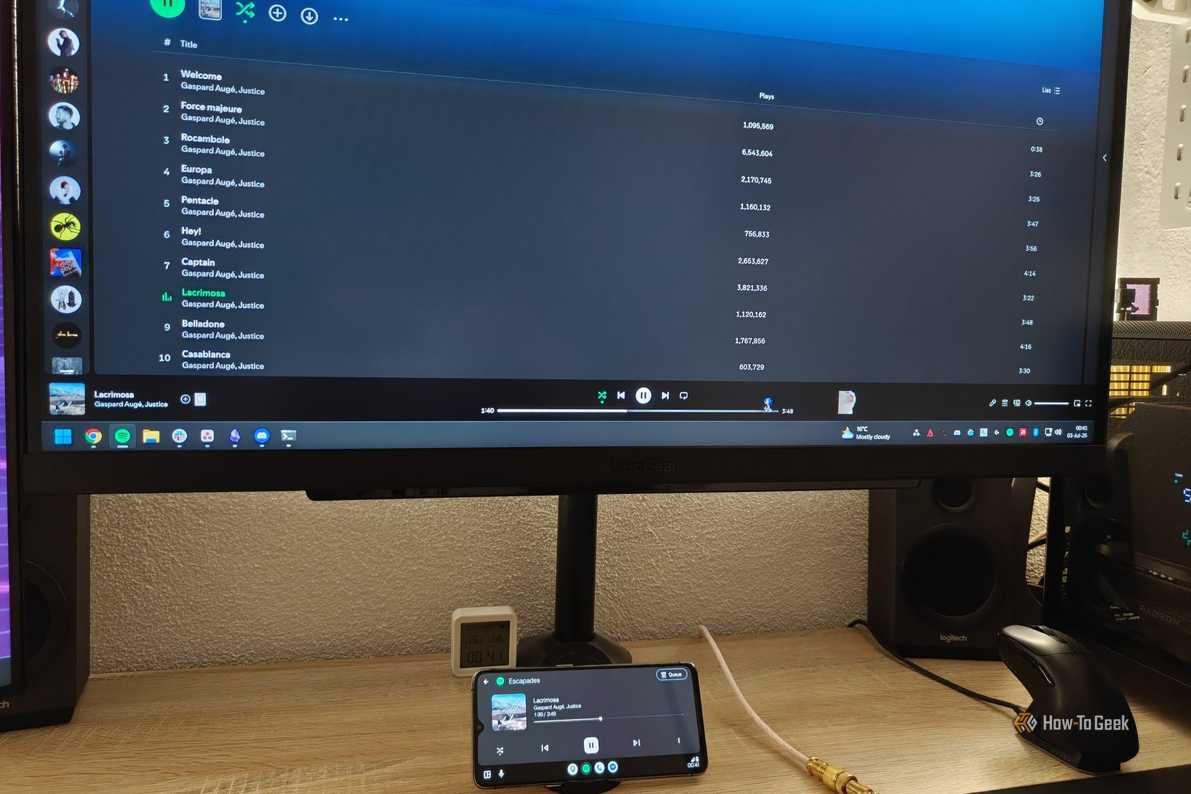
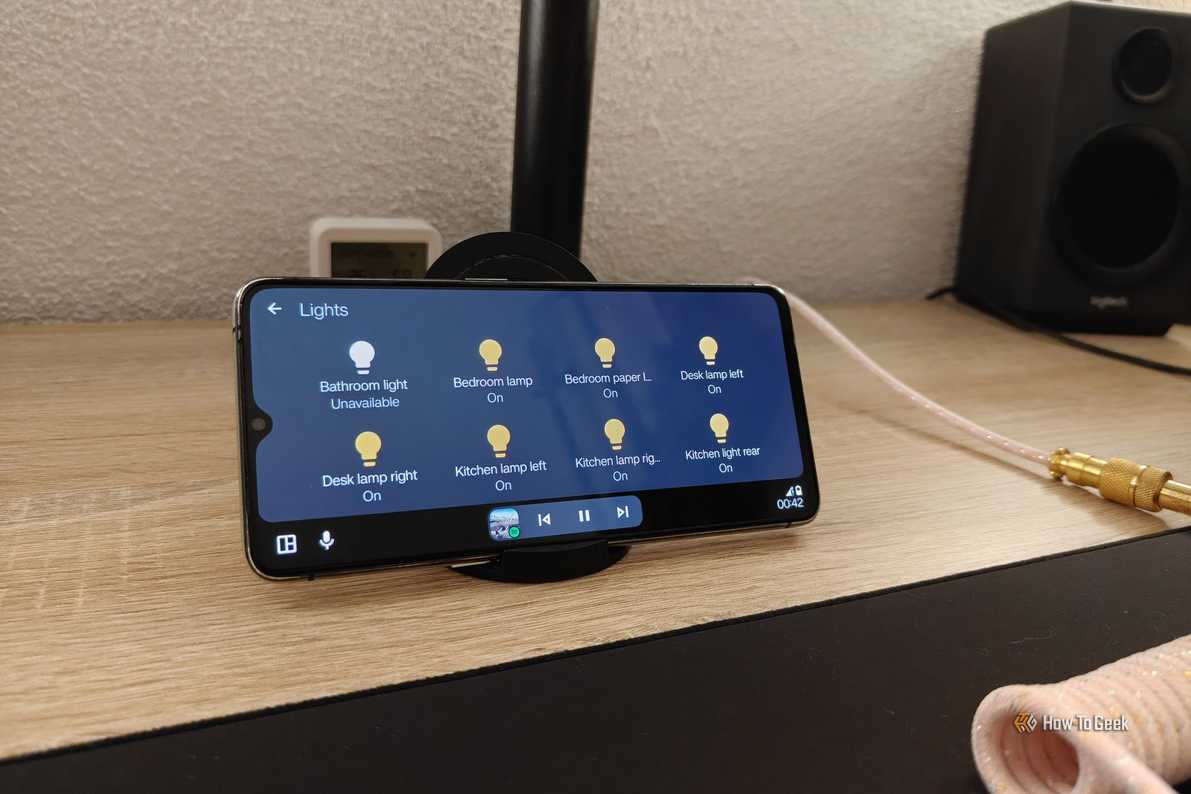

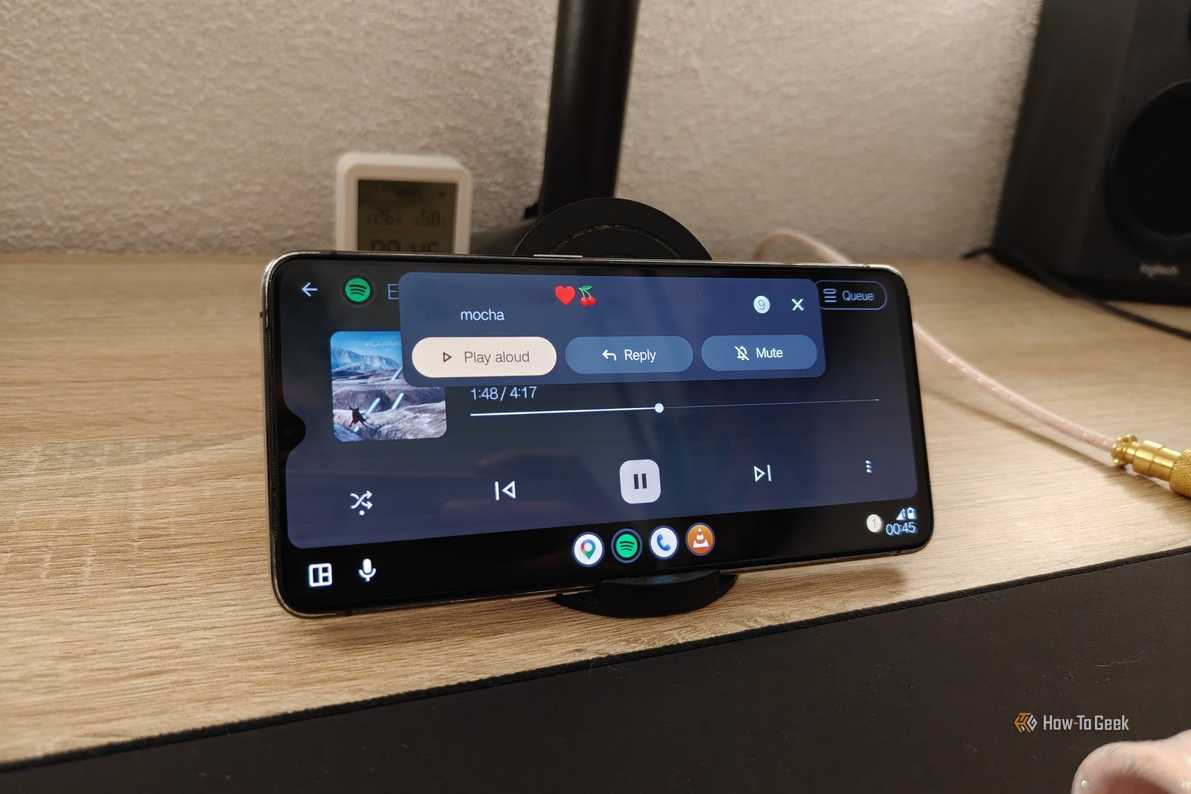
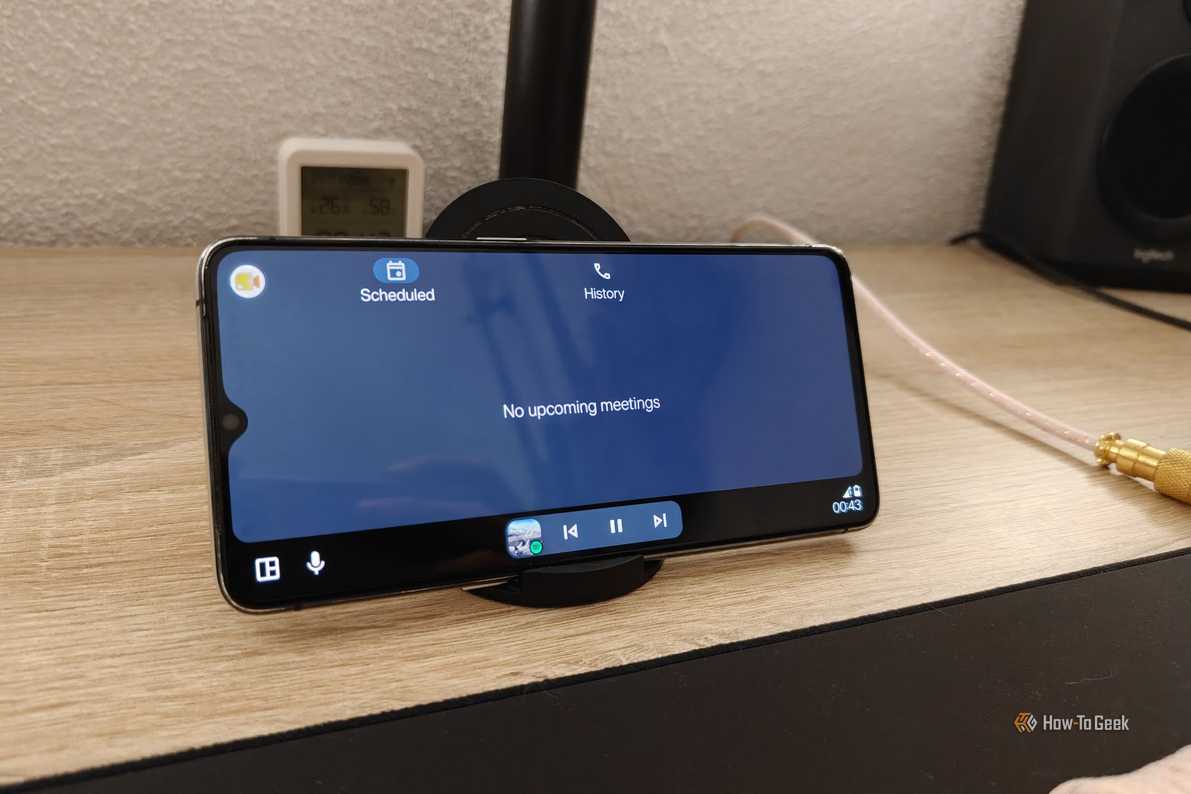


 Credit: Ismar Hrnjicevic / How-To Geek
 Credit: Ismar Hrnjicevic / How-To Geek
 Credit: Ismar Hrnjicevic / How-To Geek
 Credit: Ismar Hrnjicevic / How-To Geek
 Credit: Ismar Hrnjicevic / How-To Geek


We all have a pretty good understanding of how Android Auto works in cars. The software runs on your phone, while your car's infotainment display acts as the screen and input device.
That essentially means that as long as you have a device running software capable of acting as an Android Auto receiver, you can get Android Auto running on it.
One of the easiest devices to turn into an Android Auto display is, of course, another Android device, which in my case is my old phone. There's a good chance you have one sitting in a drawer as well, making this a project that's easy to replicate.
Now, you might be wondering why I'd want to run Android Auto at home when it's so heavily optimized for driving. That's actually exactly what makes it such a great desk dashboard.
I obviously don't need turn-by-turn navigation while I'm sitting at my desk, but that's only one piece of the experience.
A surprising number of apps offer native Android Auto support, letting me control Spotify, which I actually use on my PC, access Gemini, check messages, see notifications at a glance, and even control compatible smart home devices—all without picking up my primary phone.
In a nutshell, Android Auto on my desk gives me glanceable information and instant access to my smartphone on a separate display, complete with large buttons, voice commands, and minimal distractions. It's a much more intentional interface than unlocking my phone every time I want to do something simple.
 Quiz
QuizHow does the U.S. deal with phones + driving?
Trivia challenge
Think you know the rules of the road when it comes to phones, GPS, and gadgets? Put your knowledge to the test.
What is the term commonly used in U.S. traffic law to describe using a handheld device while driving?
Which U.S. state was the first to ban handheld cell phone use while driving statewide?
What type of fine structure do many U.S. states use to discourage repeated handheld device violations while driving?
Which federal law regulates the installation and use of electronic logging devices (ELDs) in commercial trucks in the United States?
In most U.S. states with hands-free laws, which of the following is generally still legal while driving?
Which U.S. state introduced a 'distracted driving' law in 2021 that bans virtually all handheld device use, including briefly checking a notification at a red light?
What is the primary purpose of the 'Do Not Disturb While Driving' feature found on modern smartphones in the context of U.S. traffic safety?
According to the NHTSA, how many feet does a car traveling at 55 mph travel in the time it takes to read an average text message (about 5 seconds)?
Your Score
Thanks for playing!
How I turned my old Android phone into a handy desk dashboard
A simple setup transformed unused hardware into something genuinely useful

Before I even thought about setting up Android Auto, I first needed to get the hardware in place. A minimalist phone stand that keeps the phone at the right angle was a no-brainer, and I also needed a charger if I wanted this to run as a proper dash 24/7. All in all, a pretty simple setup.

UGREEN Magnetic Phone Stand for MagSafe
- Compatible Devices
- MagSafe devices
- Color(s)
- Black, Grey
This Ugreen magnetic phone stand is a black, adjustable desk accessory designed for MagSafe-compatible iPhones. It has a powerful magnetic grip and a scratch-resistant silicone surface. The stand has height adjustment, 360-degree rotation, and a foldable, travel-friendly design. An included metal ring extends compatibility to other phones and cases.
The next step was choosing the right app to turn the phone into an Android Auto receiver.
Headunit Reloaded is by far the most popular, but since a lot of people in the reviews reported issues with it, I opted for Headunit Revived instead.
After installing Headunit Revived on my old phone, I also installed the Wireless Helper companion app on my OnePlus 15, which is my main phone.
When you open Headunit Revived for the first time, the menu can feel a bit intimidating because the options aren't exactly self-explanatory. Luckily for you, I've gone through the trouble myself, so just follow what I did.
To establish the initial connection, open Headunit Revived on your old phone and go into Settings. Make sure it's set to Wireless Helper under Wireless Mode, and set the Helper Connection Strategy to Wi-Fi Direct (P2P).

On your primary phone, open the Wireless Helper app. Change the Connection Mode to Wi-Fi Direct. Under Wi-Fi Direct Device Name(s), enter the device name of your Android Auto device, which is displayed at the top of the home screen in the Headunit Revived app—I couldn't figure out why my phone wasn't connecting until I realized the device wasn't there.

Once that's done, simply tap the Start Android Auto button at the top. On the phone running Headunit Revived, tap the Wi-Fi option and, when the two devices connect, tap To Android Auto.
If you want your main phone to connect to Android Auto automatically whenever you're home, the Wireless Helper app has the option to set Auto Start Service to when you connect to your home Wi-Fi, though that can be inconvenient whenever you try using the phone away from the desk.


If you'd like to take things even further, you should set the app up so that it's always ready to start when you sit down at your desk. In the app's settings, go to Auto-start settings and enable Start on screen so that it auto-launches whenever you unlock the screen. Also, under Auto-Connect Settings, enable Auto-Connect Last Session.

There are a couple of things you should set up on your old phone outside the app as well. Make sure battery optimization for the app is disabled to prevent Android Auto from going into sleep and, if you want the phone to always be on and ready, enable the Stay Awake option in Developer Options.
Lastly, I recommend setting the screen orientation to horizontal and playing around with the pixel density value in the Headunit Revived app. I increased the DPI slightly so that Android Auto defaults to opening my apps in full screen instead of splitting them with Google Maps, which I don't need for my dashboard.
This project turned out way more useful than I could've imagined
I thought this would be a fun little addition to my desk, but it ended up being one of my favorite projects I’ve ever done.
Being able to see what song is playing and change it in Spotify has been great, but reading messages at a glance, answering phone calls on the loudspeaker in seconds, and controlling my smart lights has been the real icing on top.